The Ultimate Lockdown: Setting Up Your Hardware Wallet as a FIDO2 Security Key
Turn your Ledger or Trezor into an unhackable gatekeeper for your entire digital life.
6 January 2026 • 4 min read
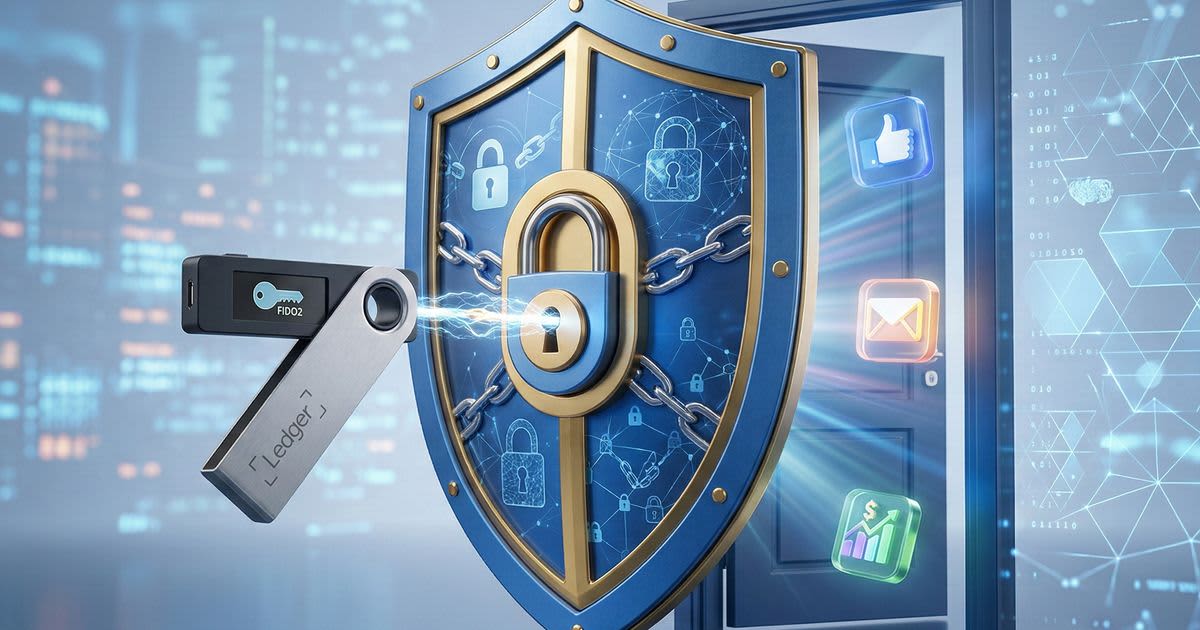
Let's be real: your "strong" password is likely one data breach away from being useless. In a world where SIM swapping and sophisticated phishing are the norm, relying on an SMS code or a mobile authenticator app is like locking your front door but leaving the key under the mat.
If you own a Ledger or a Trezor, you are already carrying a world-class security device. It is time to stop thinking of it as just a "crypto wallet" and start using it as your digital fortress. By leveraging the FIDO2 (Fast IDentity Online) standard, you can turn your device into a physical key that makes remote hacking virtually impossible.
Why FIDO2 is the Gold Standard
Traditional Two-Factor Authentication (2FA) has a major flaw: it can be intercepted. A hacker can trick you into typing your 6-digit code into a fake website. FIDO2 changes the game by using public-key cryptography.
When you log in, the website sends a challenge to your hardware wallet. Your device signs that challenge locally and sends it back. No sensitive data ever leaves the chip, and the best part? It only works on the real website. If you are on a phishing site, the device simply won't respond. This level of security goes Beyond Bitcoin: Using Your Ledger or Trezor to Secure Your Digital Identity and Emails and protects your entire online footprint.
Setting Up Your Ledger as a Security Key
Ledger makes the process incredibly straightforward through their "FIDO U2F" app.
- Install the App: Open Ledger Live, go to the Manager, and search for the FIDO U2F app. Install it on your device.
- Navigate to Security Settings: Open the website you want to secure (like Gmail, Binance, or GitHub) and find the "Security" or "Two-Factor Authentication" section.
- Add a Security Key: Choose the option to add a physical security key.
- Connect and Confirm: Plug in your Ledger, open the FIDO U2F app on the device, and press both buttons to confirm the registration when prompted.
Setting Up Your Trezor as a Security Key
Trezor supports FIDO2 and U2F natively, meaning you don't even need to install a separate app.
- Enable FIDO2: Ensure your Trezor firmware is up to date via Trezor Suite.
- Register on the Site: When a service asks for a security key, simply connect your Trezor and enter your PIN.
- Physical Interaction: You will see a prompt on the Trezor screen asking if you want to authenticate. Confirm it on the device, and you are in.
Where Should You Use This?
If you have already explored Beyond the Password: The Ultimate YubiKey 5 Setup Guide for Gmail & Binance, you know that physical keys are the ultimate defense for high-stakes accounts. You should prioritize your hardware wallet for:
- Primary Email: Your email is the "master key" to your life. Secure it first.
- Crypto Exchanges: If you still keep some funds on Binance or Kraken, a physical security key is a non-negotiable requirement.
- Social Media: Prevent account takeovers on X (Twitter) or Facebook that could be used to scam your friends or followers.
- Password Managers: Use your hardware wallet to unlock your vault in Bitwarden or 1Password.
Conclusion: The Ultimate Take-away
Using your hardware wallet as a FIDO2 security key is the single most effective way to protect yourself from modern cyber threats. It moves your security from "something you know" (your password) to "something you have" (your physical device).
The peace of mind that comes from knowing a hacker cannot access your accounts without physically stealing your Ledger or Trezor is worth the five minutes it takes to set up. Don't wait for a "close call" to take your security seriously: lock it down today.
Related posts


Gulf sovereign wealth funds execute hostile on-chain takeovers of decentralized stablecoin protocols
12 March 2026 • 4 min read


Sovereign debt limits ignite a retail rush into physical gold and decentralized privacy assets
15 September 2026 • 4 min read